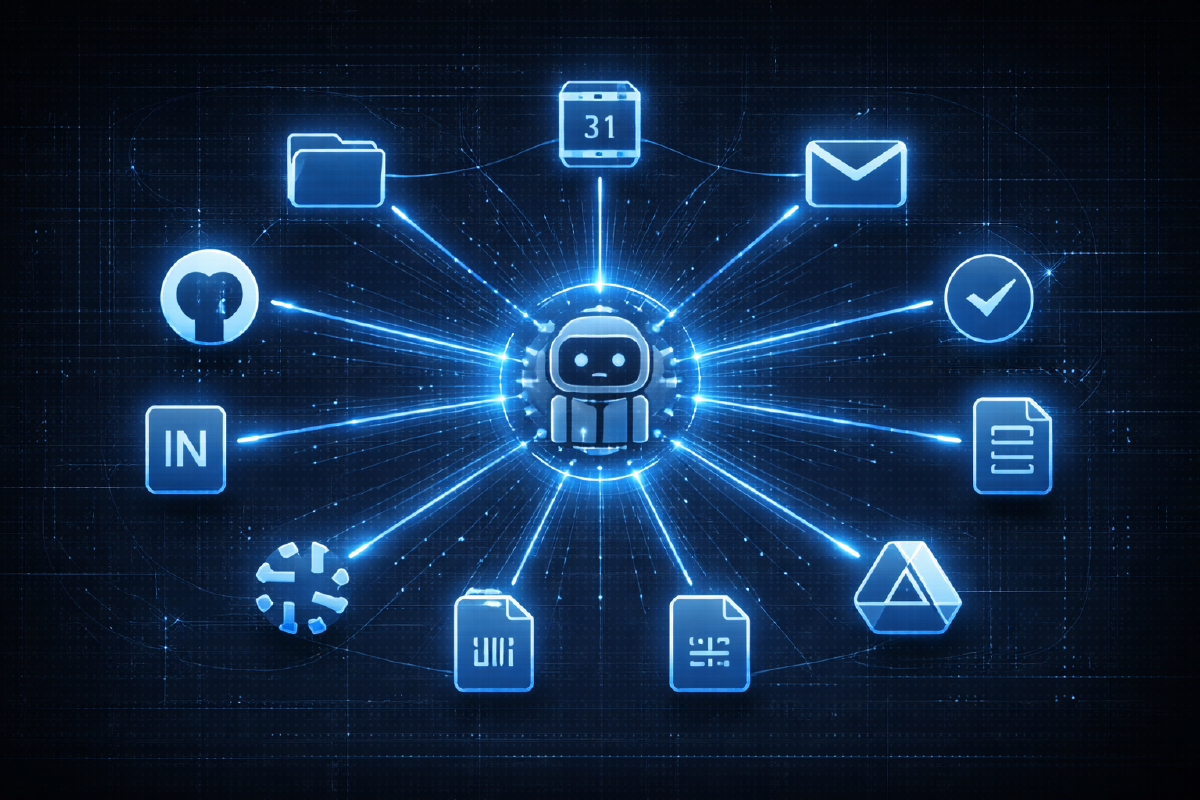

At the end of chapter two, I listed the remaining gaps: Google Docs, Slack, and calendar. I closed all three in one session. And somewhere in the middle of watching Claude check fifteen people’s availability, create a calendar invite, fix a pricing error in a live Google Doc, and build a multi-tab dashboard in Sheets - all without me opening a browser - I realized the setup had crossed a threshold. This isn’t an AI assistant anymore. It’s a control room.
Google Workspace: The gws CLI#
Google’s ecosystem has always been the hardest to connect to anything. There are APIs for everything, but the auth is painful and the surface area is enormous. Then Google dropped something that changed everything - they released an official CLI for the entire Workspace suite. Announced on March 2nd, written in Rust, open-sourced under Apache 2.0. It wraps the entire Google Workspace API surface, dynamically built from Google’s Discovery Service. Gmail, Calendar, Drive, Docs, Sheets, Slides, Tasks, Chat, Admin - all through one command-line tool. It even ships with MCP server support and over 100 pre-built agent skills.
Setup#
Installation is through npm (it bundles pre-built native binaries, no Rust toolchain needed), or you can grab a binary from GitHub Releases or build from source with Cargo:
npm install -g @googleworkspace/cliThen there’s a guided setup command that walks you through the GCP project configuration:
gws auth setup     # walks you through Google Cloud project config
gws auth login     # subsequent OAuth login
There’s a prerequisite that might trip you up: you need a Google Cloud project with OAuth configured. The gws CLI authenticates through GCP, so without a project and OAuth consent screen set up, you’re not getting anywhere. Fortunately, my team already had an internal GCP project I could use, so I didn’t have to create one from scratch. I just had to configure the OAuth consent screen and then enable the specific APIs I wanted to use - Calendar, Gmail, Drive, Docs, Sheets - through the Google Cloud Console. If you’re starting from zero, that’s an extra 15 minutes of clicking through GCP setup screens. Not hard, just tedious.
Once OAuth is configured, the auth flow opens a browser for Google sign-in. The session persists after that. But make sure you enable every API you plan to use - miss one and you’ll get cryptic permission errors that don’t clearly tell you what’s missing.
Step Zero: Let Claude Learn the Tool#
Before I started using any of this, I did something that saved me hours down the line. I told Claude to explore the gws CLI on its own - run gws --help, poke around the subcommands, try things out - and document everything it learned in CLAUDE.md. Claude went through the command tree, figured out the patterns for each service (Calendar, Docs, Sheets, Drive, Gmail), noted the common flags and parameter formats, and wrote it all down.
This is step zero for every new tool integration. Don’t try to manually document the CLI yourself. Don’t write a cheat sheet. Just point Claude at it and say “learn this, write down what you find.” The result is a reference that’s perfectly tailored for how Claude will actually use the tool - because Claude wrote it for itself.
After that exploration, Claude knew commands like:
# Check today's calendar
gws calendar +agenda --today --format table

# Read a Google Doc
gws docs documents get --params '{"documentId": "DOC_ID"}'

# Update a Google Doc
gws docs documents batchUpdate ...

# Push data to a Google Sheet
gws sheets spreadsheets values update ...

# Create a calendar event
gws calendar events insert ...
Same pattern as Snowflake in chapter two. Same pattern as GitHub in chapter one. The pattern is the point: install the tool, let Claude explore it, document the findings in CLAUDE.md, and every future session starts with full context.
By now, my CLAUDE.md has grown into a serious reference document. It’s not something I sat down and wrote - it accumulated organically as Claude explored each tool and I added context along the way. It has data warehouse table schemas with column descriptions and computed value formulas. GitHub repo structure with GraphQL query patterns for epics and tasks. Notion page indexes so Claude can fetch the right product spec without me hunting for URLs. Team lists pulled from calendar invites. CLI command references for every integrated tool. Connection configs and auth notes.
It reads like an operations manual that no one would ever bother writing by hand. But because Claude writes it for itself as it goes, the manual builds itself. And every new conversation starts with all of that context loaded. Claude doesn’t ask “what’s your data warehouse schema?” or “where do I find the product specs?” - it already knows.
Slack: The Built-in Plugin#
Slack was easier than expected. Claude Code has a built-in Slack plugin that provides MCP tools for searching, reading, and sending messages.
/install-slack-app    # Install the Slack app
                      # Complete authorization in browser
/mcp                  # Connect to the plugin (may need a second attempt)
Once connected, you get a set of tools that cover the core Slack operations: searching messages across public channels, reading threads, reading channel history by date range, sending messages, finding users, and viewing profiles. It’s not the full Slack API, but it’s exactly the surface area a PM actually needs.
Use Case 1: Finding My Team from Calendar#
Here’s a scenario that happens constantly. You need your team list - not the org chart version, but the actual humans who show up to your recurring meetings. The people in the room.
I asked Claude to look up my weekly team sync recurring meeting and extract the attendees. It queried the Calendar API, found the event, and pulled out fifteen people with their email addresses. Then I had it save the list to CLAUDE.md so every future session would know my team without me having to explain it again.
This is a small thing that compounds. Every time Claude needs to schedule something, check availability, or reference a teammate, it already knows who it’s working with.
Use Case 2: Scheduling a Meeting#
This one surprised me with how smoothly it worked.
I needed to schedule a Monday afternoon meeting with my full team - all fifteen people - to review a strategy doc together. In the normal workflow, I’d open Google Calendar, eyeball the afternoon slots, manually check if the important people are free, give up trying to check all fifteen, pick a time that looks reasonable, and hope for the best.
Instead, I told Claude to find a free slot Monday afternoon for the whole team. It:
- Listed my Monday afternoon calendar to identify open slots
- Queried the freebusy API for all fifteen team members simultaneously
- Identified that four people had conflicts in my preferred slot
- Reported back who was busy and when
- Created the invite via
events insertwith a doc link in the description
The invites went out automatically. The whole thing took maybe thirty seconds. The freebusy check alone would have taken me ten minutes of clicking through individual calendars - and I probably would have given up after checking five people.
Use Case 3: Editing a Live Google Doc#
This one changed how I think about document workflows.
I had a pricing proposal Google Doc that needed review. Instead of opening it in a browser, reading through it, and making edits manually, I asked Claude to fetch and review it.
Claude pulled the full document via docs documents get, parsed all the content including paragraphs and tables, and read through it. It flagged an inconsistency: a pricing table had an outdated number that didn’t match the current plan prices. The kind of error that’s easy to miss when you’re skimming but embarrassing when a stakeholder catches it.
Here’s the part that matters: Claude fixed it directly in the live Google Doc using batchUpdate with replaceAllText. No downloading, no local edits, no re-uploading. The fix happened in the canonical document that everyone else is already looking at.
This eliminates an entire class of document management friction. The doc stays in Google Docs where your team expects it. Claude reads and edits it in place.
One thing I still need to try: reviewing and responding to comments. Google Docs comments are where half the actual collaboration happens - suggestions, questions, feedback threads. If Claude can read those, summarize open comments, and draft responses, that would close another loop entirely. That’s next on my list.
Use Case 4: Building a Dashboard in Google Sheets#
This one was purely a test. I wanted to see if Claude could take data from Snowflake and build a full Google Sheet automatically - end to end, no manual steps. The kind of thing that normally eats an afternoon: run queries, export CSVs, create a sheet, make tabs, paste data, format headers, build charts.
So I pointed Claude at a few datasets and said “build me a dashboard in Sheets.” It:
- Pulled 6 datasets from Snowflake - weekly trends, daily metrics, plan breakdowns, feature adoption, usage by segment, and more
- Created 6 tabs in a Google Sheet via
spreadsheets batchUpdate - Pushed all data to the correct tabs via
spreadsheets values update - Formatted everything - bold headers, grey backgrounds, frozen top rows, auto-resized columns
- Added 9 charts across the tabs - line charts for trends, column charts for comparisons, area charts for cumulative metrics, stacked bars for breakdowns
All programmatically. No manual sheet work. No copy-pasting between tools. The Snowflake CLI from chapter two and the gws CLI from this chapter working together in a single session. It was just a test, but it worked well enough that I could see myself using this for real stakeholder-facing dashboards.
This is what the compound effect looks like in practice. Each integration I’ve added - GitHub, Notion, Snowflake, Google Workspace, Slack - doesn’t just add one capability. It multiplies every other capability. Data from Snowflake flows into Google Sheets. Team info from Calendar informs meeting scheduling. Discussions from Slack provide context for document reviews.
Use Case 5: Searching Slack#
The last piece was communication history. I used Slack search to find discussions related to the pricing proposal across our channels. Claude found relevant threads in #product-launches and #pricing-strategy, read the full conversations, and had the context it needed to cross-reference with the pricing doc it had already reviewed.
This closed the information loop. Before, I might review a doc, remember that someone raised a concern in Slack three weeks ago, try to find that thread, lose ten minutes scrolling, and maybe give up. Now Claude searches, finds it, reads it, and synthesizes it in the same conversation.
The Full Stack#
Here’s what the workspace looks like now:
pm-workspace/
├── CLAUDE.md                # Everything: schemas, team lists, tool docs
├── .claude/
│   └── settings.local.json  # Permissions for all CLIs and MCPs
├── docs/                    # Fallback for docs that can't live in Google/Notion
├── data_reports/            # Fallback for datasets too large for live queries
└── roadmap.md               # Living roadmap document
And the integrations:
| Tool | Method | What It Does |
|---|---|---|
| GitHub | gh CLI | Issues, epics, project management |
| Notion | MCP | Product specs and documentation |
| Snowflake | snow CLI | Data warehouse queries |
| Google Workspace | gws CLI | Calendar, Docs, Sheets, Gmail |
| Slack | MCP Plugin | Search, read, and send messages |
Five integrations. Five different data sources. All accessible from one terminal, all carrying context through a single conversation.
Tips If You’re Setting This Up#
A few things I learned the hard way:
- Document everything in
CLAUDE.md. Claude can’t use tools it doesn’t know about. Every time you add an integration, tell Claude what commands are available and how to use them. Better yet, ask Claude to explore and document the tool itself. - The Slack plugin may need a reconnect. After
/install-slack-app, run/mcpto connect. If it doesn’t work the first time, try again. It’s flaky on first setup but stable after. - Use the raw API for complex Sheet operations. The
spreadsheets values updatecommand works better than higher-level helpers when you’re doing multi-tab operations with formatting and charts. - Store team lists and integration details in
CLAUDE.md. They persist across sessions. Claude knowing your team, your schemas, and your tools from the moment a conversation starts is what makes this feel like a control room instead of a chatbot.
What Changed#
After chapter one, I had a connected workspace. After chapter two, I had data access. After this chapter, I have everything. Calendar, documents, spreadsheets, communication history, data warehouse, project management, design context - it’s all in one place.
The workflow shift is real. I don’t open Google Calendar to schedule meetings. I don’t open Google Docs to review documents. I don’t open Google Sheets to build dashboards. I don’t scroll through Slack to find old discussions. I describe what I need, and it happens.
Is it perfect? No. Auth setups are finicky. The gws CLI is young and the error messages aren’t always helpful. Some operations need Python subprocess calls to avoid shell escaping issues. But the friction of setup is a one-time cost. The time saved is every single day.
Three chapters in, the thesis is holding: each new integration multiplies the value of every existing one. The gap between “I have a question” and “I have an answer with supporting data from five different sources” has collapsed from hours to seconds.
That’s god mode.