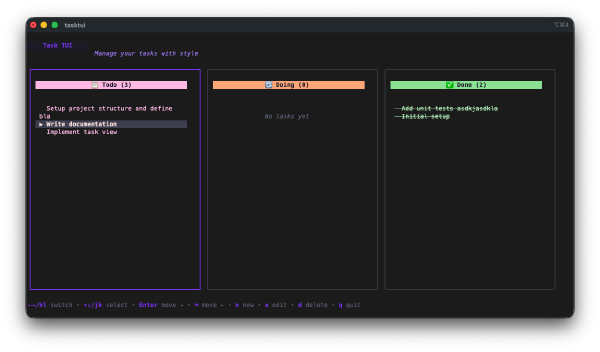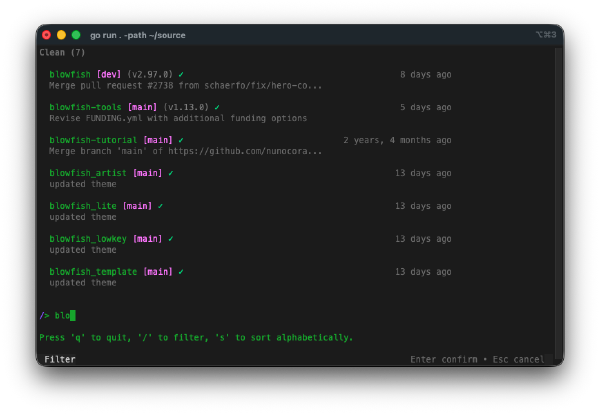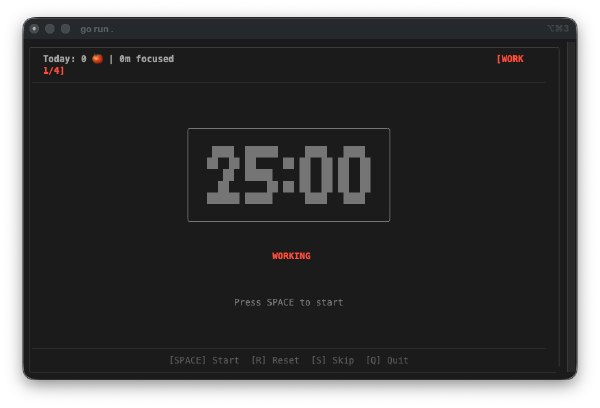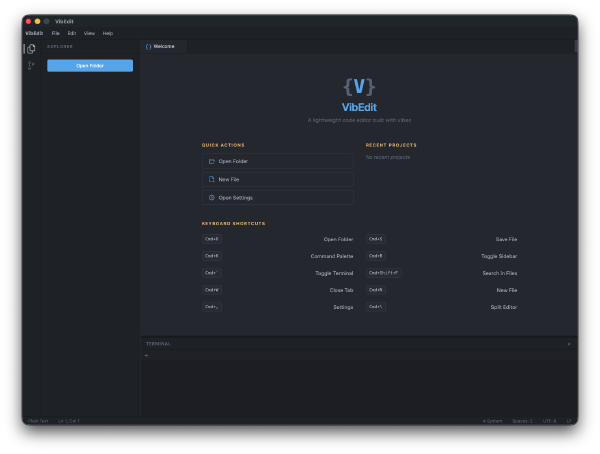

Day 8. Yesterday I built a TUI for git repos. Today I built one for my brain.
The Prompt#
“Build a terminal notes app in Go with markdown support and an MCP server.”
That was the starting point. Short, vague, barely a spec. I fed it into Watchfire and let it expand the idea into a full product definition: in-app editing with Glamour for markdown preview, SQLite with FTS5 for full-text search, categories, tags, multiple color themes, vim keybindings, MCP server mode, GoReleaser, GitHub Actions CI, install scripts. All of that came from Watchfire taking my one-liner and turning it into 36 tasks.
How It Was Built#
The first 30 or so tasks built the core notes app: creating and editing notes in the terminal, markdown rendering with Glamour, full-text search powered by SQLite FTS5, categories, tags, multiple themes, and vim-style keybindings. The whole thing stores data in ~/.notestui/ with a SQLite database and a YAML config file.
Then the last batch of tasks handled the distribution side. GoReleaser config for cross-platform builds, GitHub Actions for CI, an install script that auto-detects your OS and architecture, and an uninstall script to clean everything up. By the end it had a proper README and was ready to ship as a standalone binary.
The MCP server mode was the interesting part. Running notestui serve starts a Model Context Protocol server that exposes your notes to AI tools. List notes, search, create, update, delete, all through MCP. That means Claude Code or any MCP-compatible AI assistant can work with your notes directly.
What I Got#
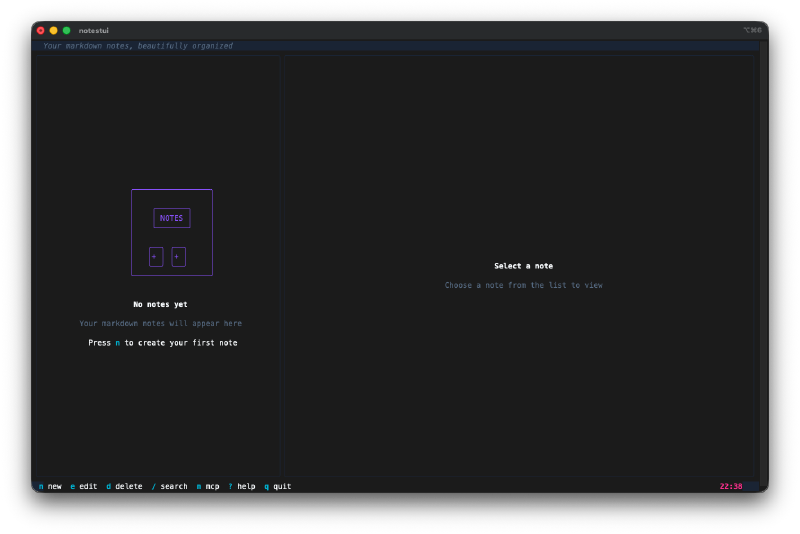
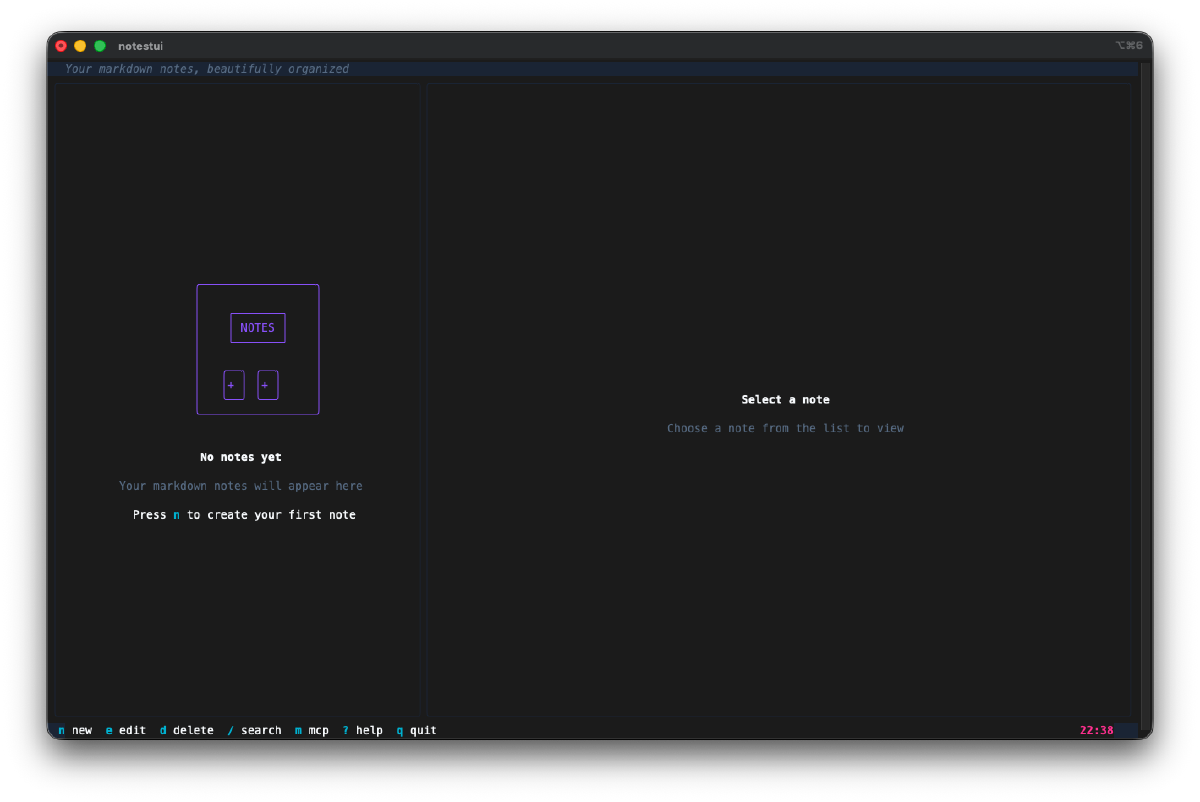
The empty state is friendly. First time you run it you get a clean welcome screen telling you to press n to create your first note. The bottom bar shows all the keybindings at a glance.
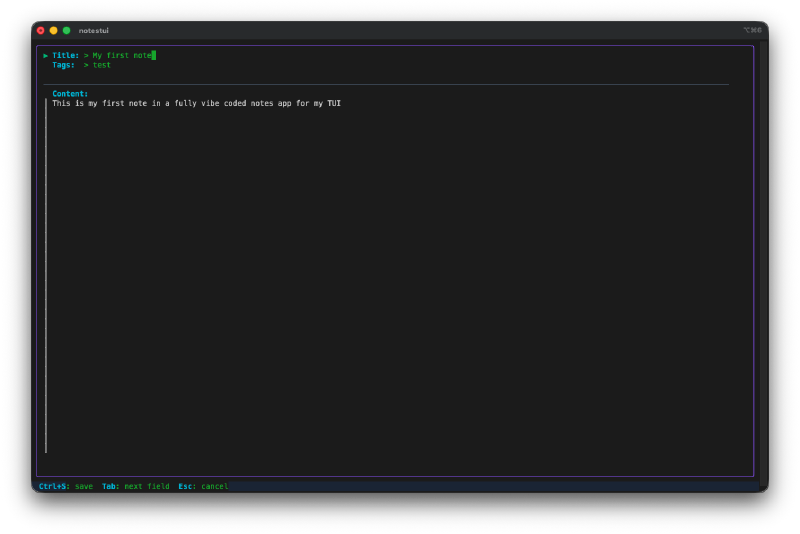
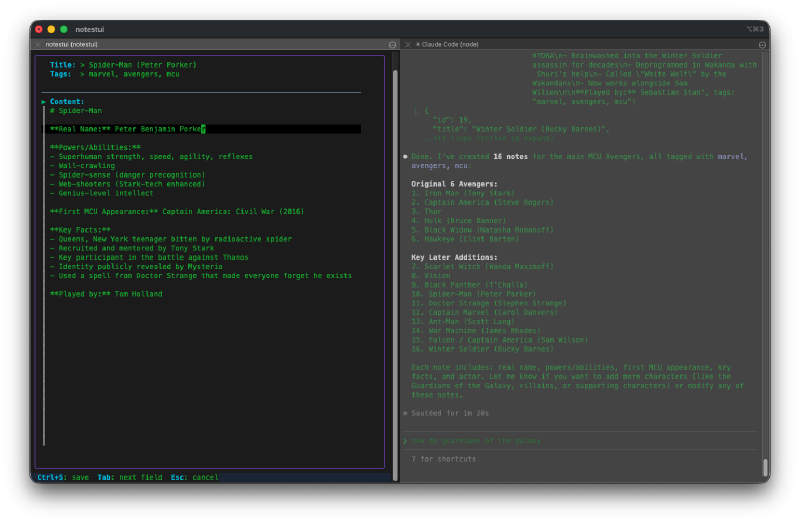
The editor is built right in. Press n and you get fields for title, tags, and content. Tab moves between fields, Ctrl+S saves. No spawning an external editor, everything stays inside the TUI.
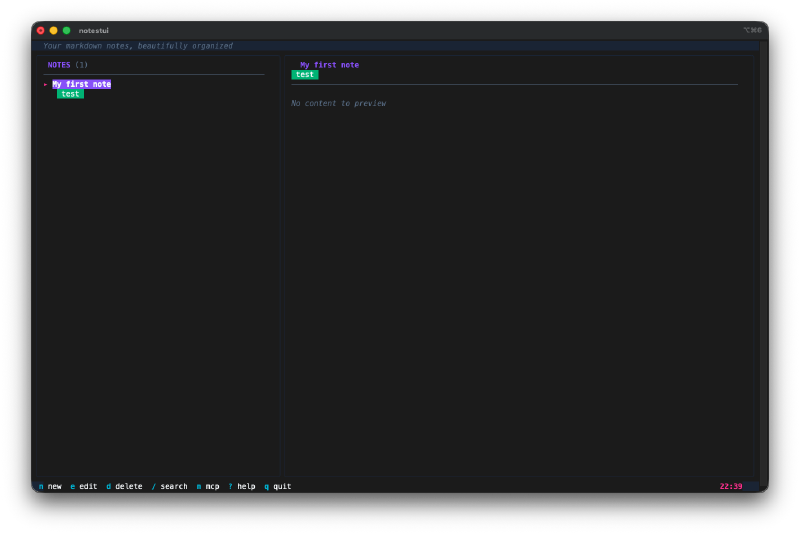
Split-pane layout. Notes list on the left, preview on the right. Tags show up as colored badges under the title. The status bar at the top says “Your markdown notes, beautifully organized” which is a nice touch the AI added on its own.
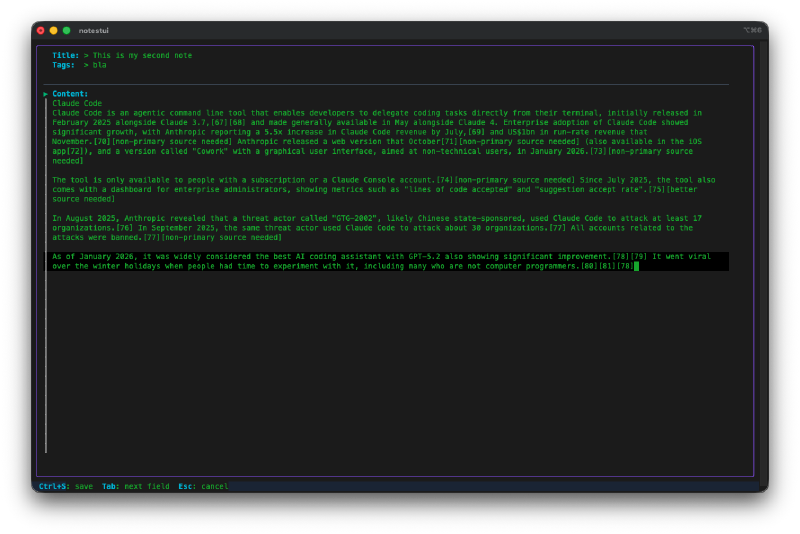
Markdown editing works for real content. I pasted in a longer note and the editor handled it fine. The content area scrolls, and when you save, the preview panel renders the markdown with Glamour.
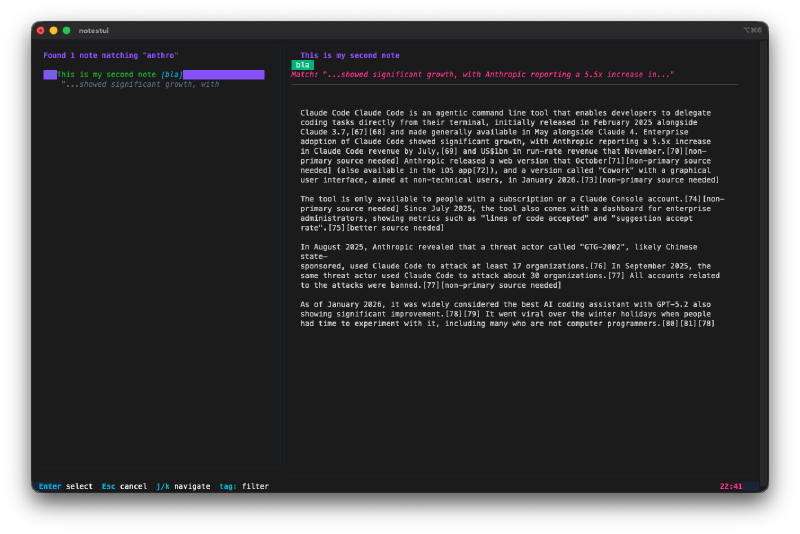
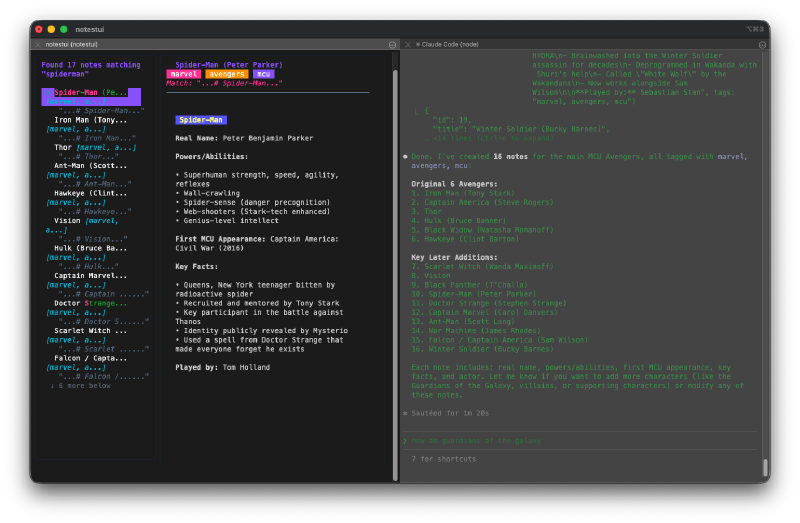
Search is fast and useful. Press / to search and it does full-text search across all your notes using SQLite FTS5. Results show up in the left panel with the matched note’s preview on the right. The search query gets highlighted in the preview.
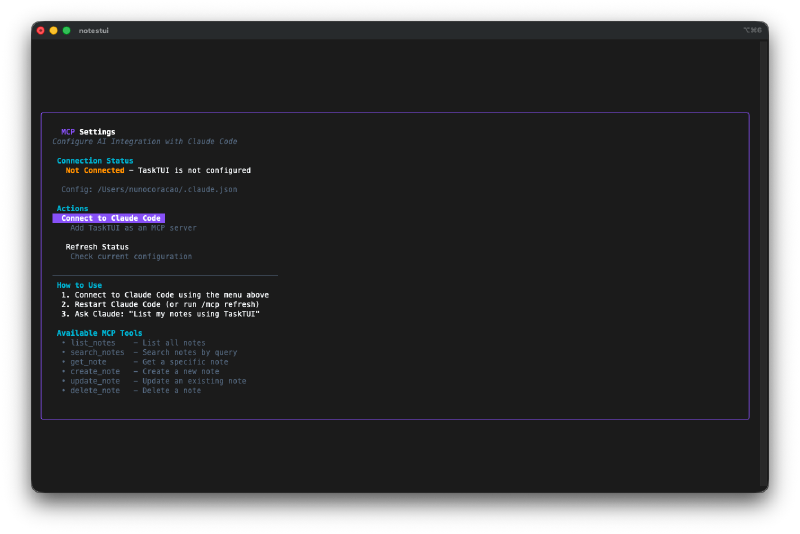
MCP integration has its own settings screen. Press m to open the MCP settings. It shows connection status, available tools, and setup instructions. When not connected, it walks you through how to set it up.
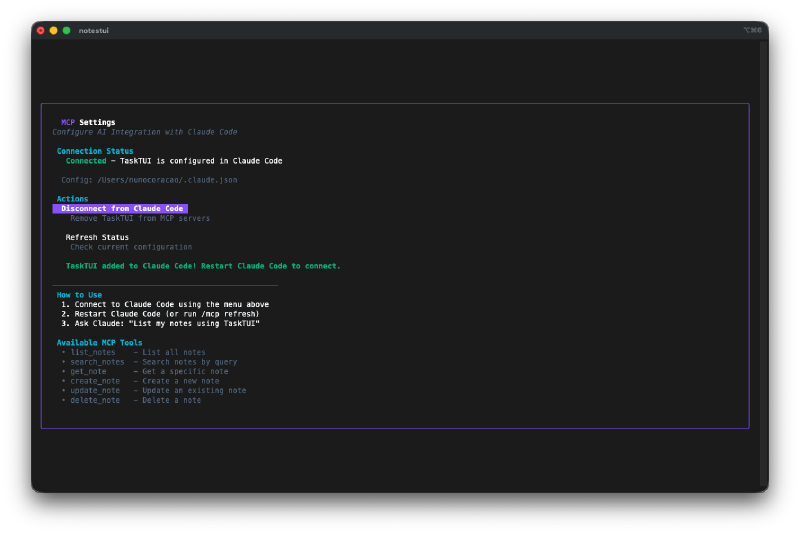
Once connected, it shows the status. The settings screen updates to show that NotesTUI is configured to Claude Code, with a button to disconnect and a refresh status option.
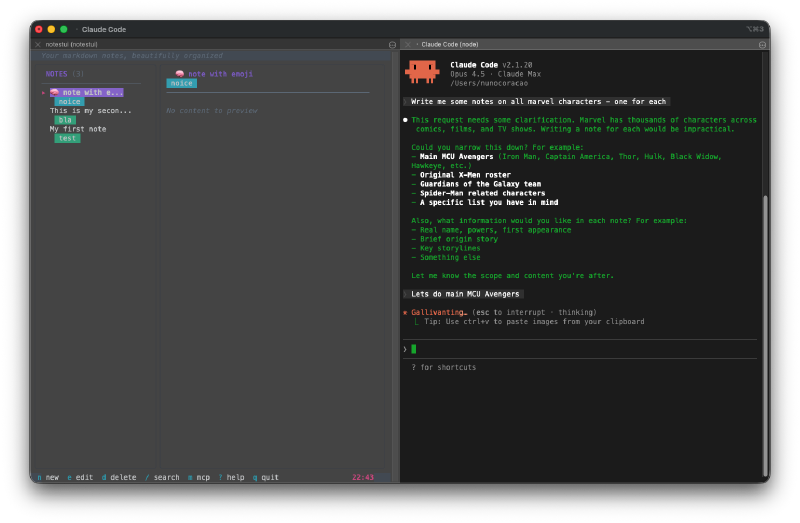
This is where it gets wild. I asked Claude Code to “write me some notes on all Marvel characters, one for each.” It started calling notestui - create_note through MCP, generating detailed character profiles and pushing them straight into my notes database.
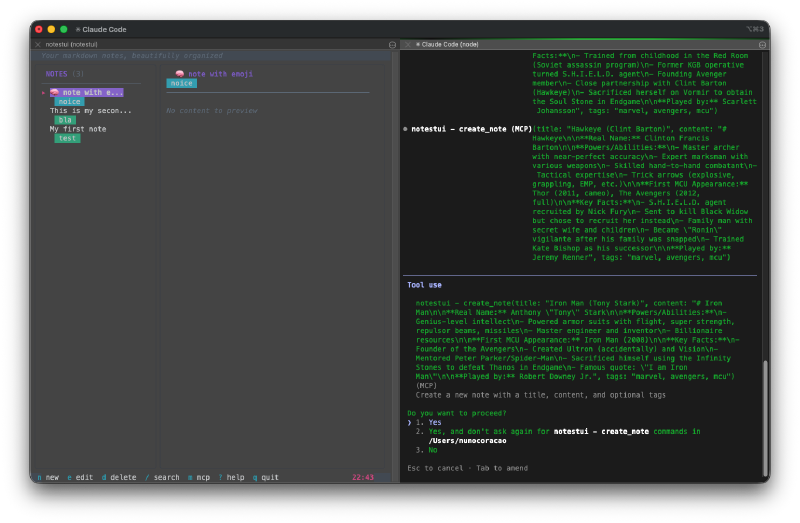
It just kept going. Claude created notes for Thor, Hulk, Black Widow, Hawkeye, Captain America, Iron Man, each with powers, abilities, key facts, and played-by information. All via MCP tool calls from Claude Code into NotesTUI.
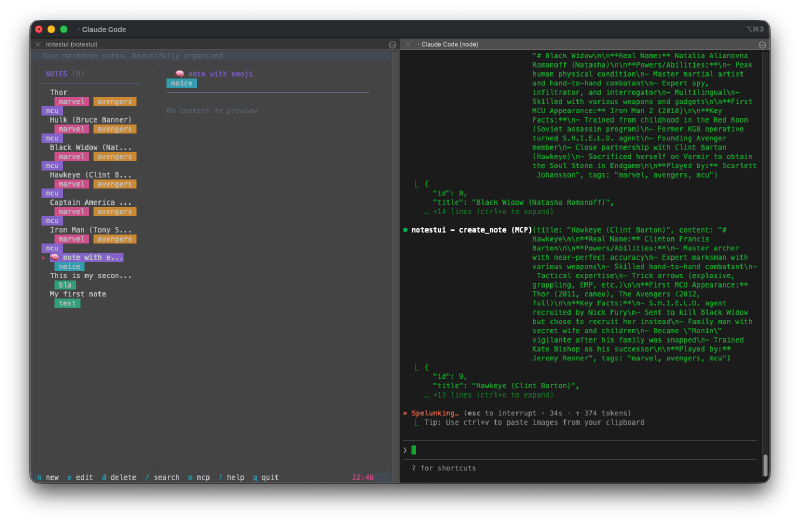
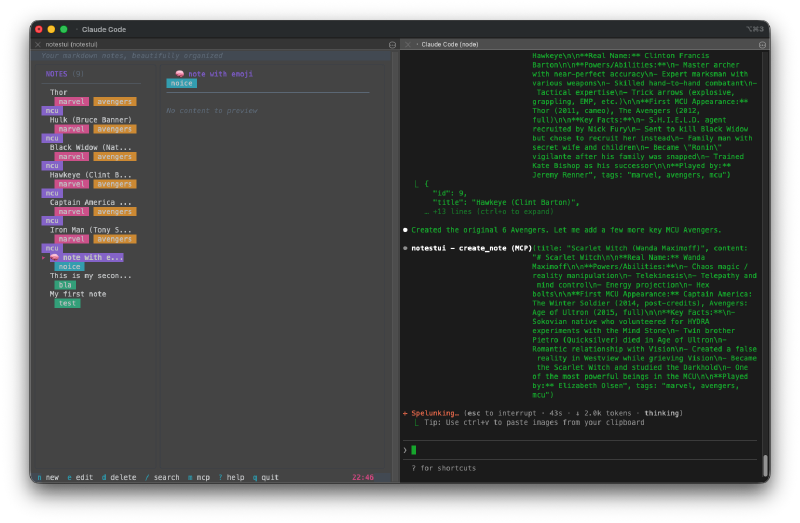
The notes kept flowing in. You can see the notes list on the left growing as Claude creates them. Each one gets proper tags like “marvel”, “avengers”, “mcu”. The AI even decided to expand beyond the original 6 Avengers and add Scarlet Witch, Vision, and more.
16 notes created, all searchable. After the AI was done, I searched for “spiderman” and got the full character profile with real name, powers, key facts, and MCU appearances. The split-pane view shows the rendered markdown preview on the right.
The markdown rendering is solid. Glamour handles headers, bold text, bullet points, and blockquotes. The note preview in the right panel looks clean and readable.
Side by side with Claude Code. Running NotesTUI on the left and Claude Code on the right. As Claude creates notes through MCP, they appear in the TUI in real time. The list scrolls down as new notes arrive.
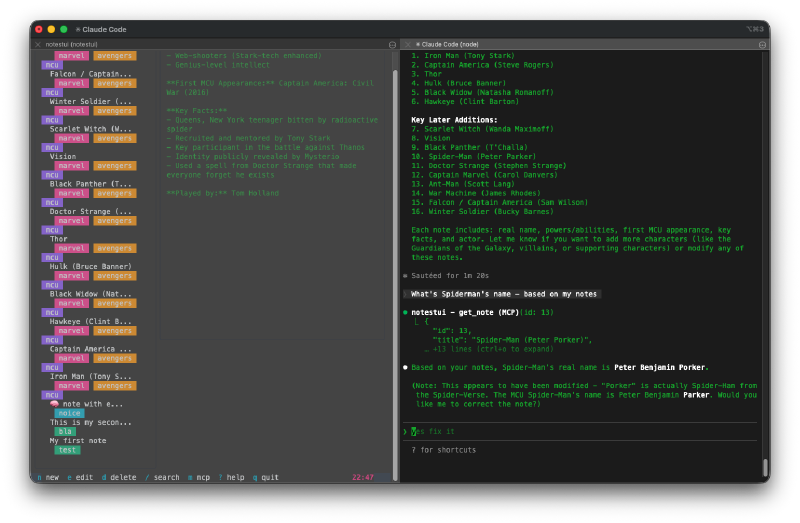
AI can also read your notes. I asked Claude “What’s Spiderman’s name based on my notes?” and it called notestui - get_note through MCP to look up the answer. It pulled the data from my notes and answered correctly: Peter Benjamin Parker. The AI can both write to and read from your personal notes database.
The Numbers#
- 36 Watchfire tasks from blank repo to shipped binary
- Pure Go with no CGO dependency (uses pure Go SQLite)
- 6 MCP tools: list, search, get, create, update, delete
- Multiple themes and vim keybindings
- GoReleaser + GitHub Actions for automated cross-platform builds
- Install and uninstall scripts included
- Total hands-on time: about 25 minutes of testing, prompting, and playing with the MCP integration
Try It#
Install it with the one-liner:
curl -sSL https://raw.githubusercontent.com/nunocoracao/Vibe30-day08-notestui/main/scripts/install.sh | bashOr from source:
go install github.com/nunocoracao/Vibe30-day08-notestui@latestThen just run notestui to start taking notes, or notestui serve to start the MCP server.
Day 8 Verdict#
The notes app itself is solid. Clean TUI, fast search, nice markdown rendering. If I hadn’t already migrated to Obsidian, this is the kind of tool I’d actually use daily. But the MCP server is what makes this one different from anything else in the challenge so far.
The Marvel character demo was fun, but think about what the MCP server actually enables. This isn’t just a notes app that an AI can dump trivia into. It’s a persistent knowledge store that any AI agent can read from and write to. You could use it to power an agent’s memory. Feed it meeting notes, project context, research findings, and then any MCP-compatible assistant can query that knowledge on demand. The line between “notes app” and “agent knowledge base” turns out to be an MCP server.
Watching the notes appear in real time in the TUI while Claude was typing away in another terminal was one of those moments where the whole vibe coding thing clicks. You build a tool, give it an AI interface, and suddenly it can do things you didn’t think to ask for.
36 Watchfire tasks. The extra complexity came from the MCP server, the distribution scripts, and the CI pipeline. But the result is a proper Go tool that installs from a single curl command and works with AI assistants out of the box.
This is day 8 of 30 Days of Vibe Coding. Follow along as I ship 30 projects in 30 days using AI-assisted coding.