
Day 23. I told an AI to build me Windows 95.
The Prompt#
This one was pure nostalgia:
“Build a Windows 95-inspired desktop environment that runs in the browser. Include a taskbar, start menu, draggable and resizable windows, and classic apps like Notepad, Calculator, Paint, Minesweeper, Terminal, Internet Explorer, and My Computer. Add a boot sequence, pixel art SVG icons, sound effects, wallpaper selection, a CRT effect, and a BSOD easter egg.”
How It Was Built#
Watchfire broke this down into 10 tasks. The scope here was wild. This isn’t a single app, it’s an entire operating system UI with a window manager, a taskbar, a start menu, and seven separate applications all running inside it. Each one needed its own behavior, its own window chrome, its own interactions.
The task list covered the desktop shell first (taskbar, start menu, window management), then each application one by one, then the finishing touches like the boot sequence, BSOD, CRT scanline effect, and sound effects.
What I Got#
This thing boots.
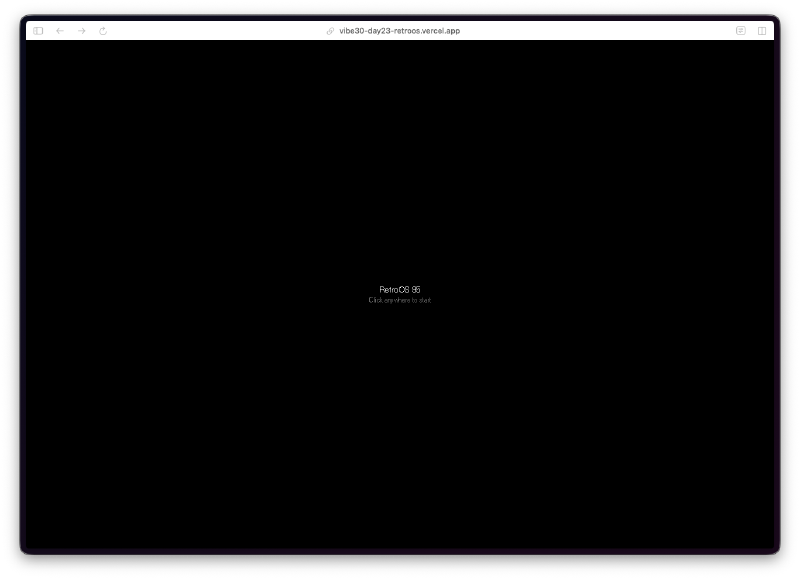
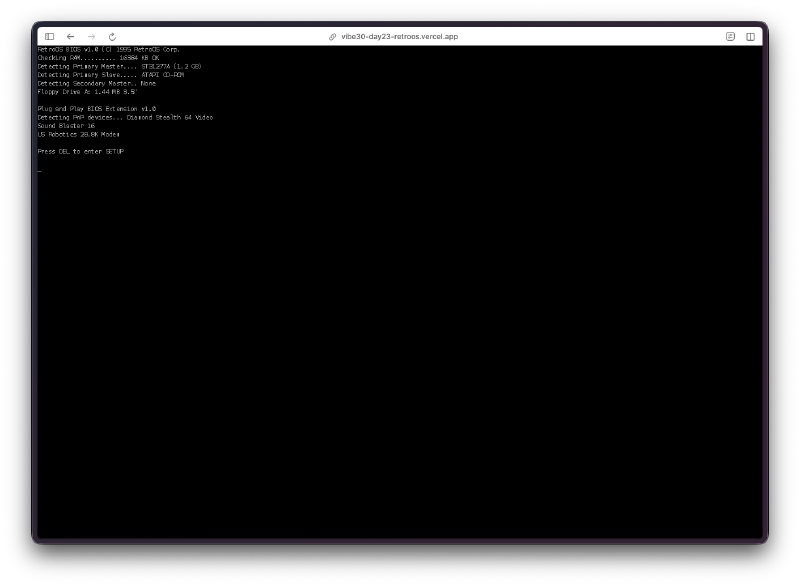
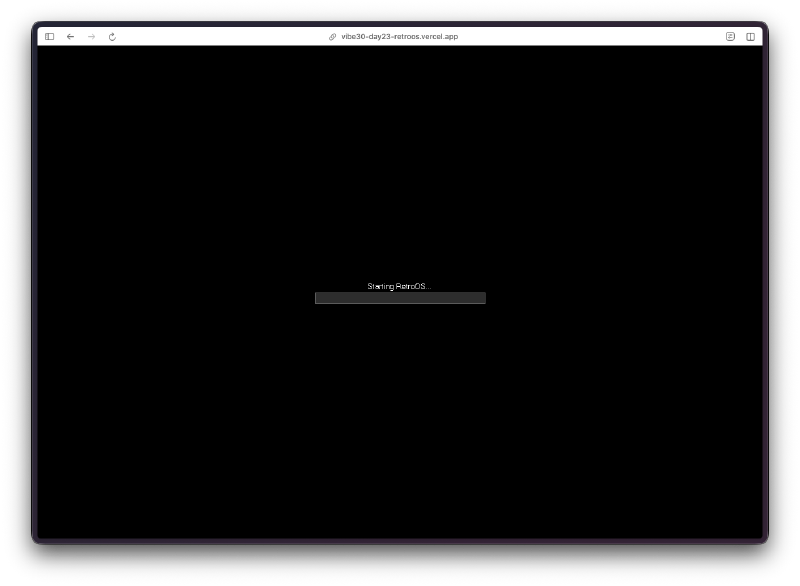
You load the page and get a black screen that says “RetroOS 95 - Click anywhere to start.” Click it and you get a text-mode POST sequence scrolling by, just like the real thing. Then a progress bar with “Starting RetroOS…” before the desktop loads.
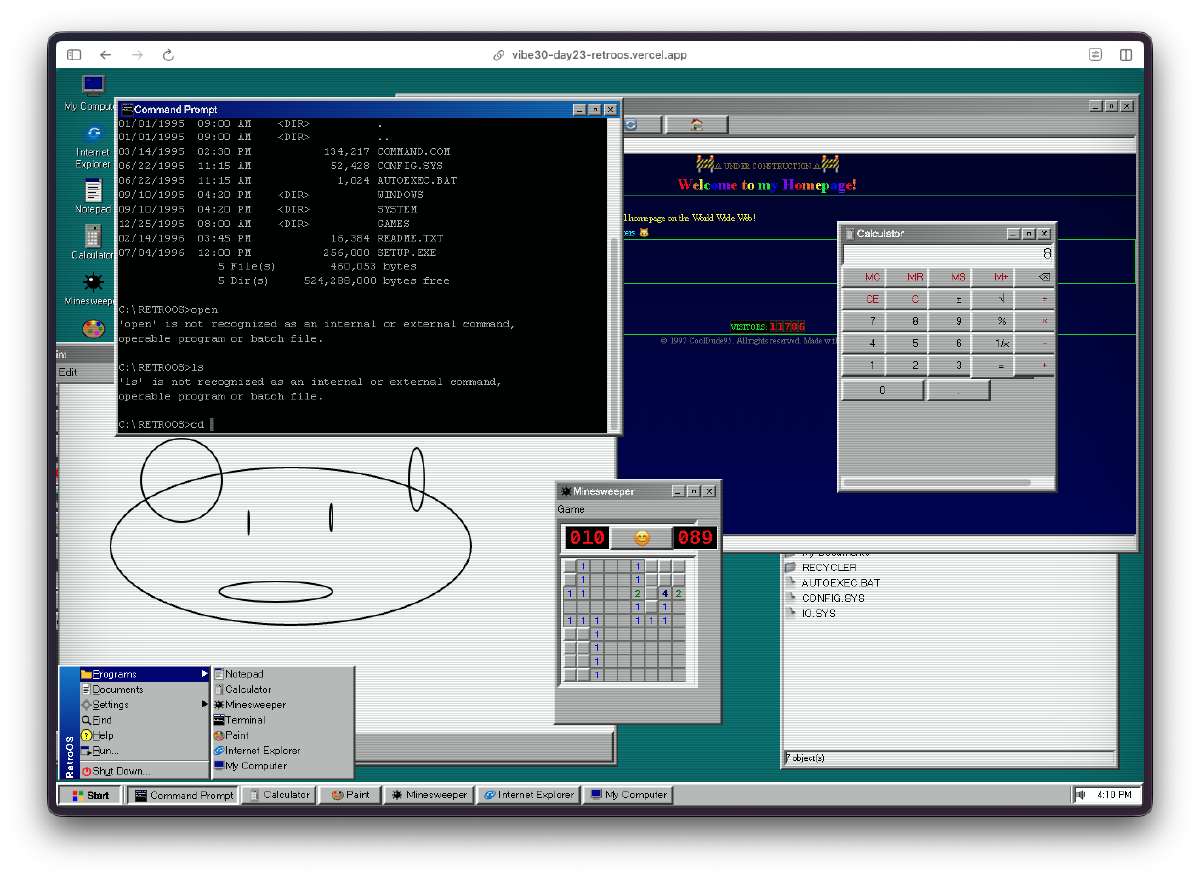
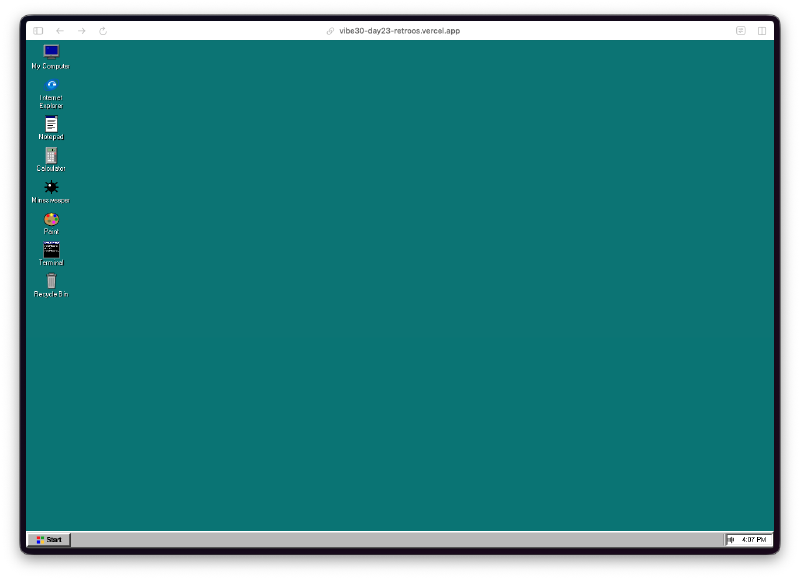
Then the desktop appears and it looks right. That specific shade of teal. The chunky gray taskbar at the bottom. The Start button in the corner. Desktop icons lined up on the left side with pixel art SVG icons that actually look like they belong in 1995.
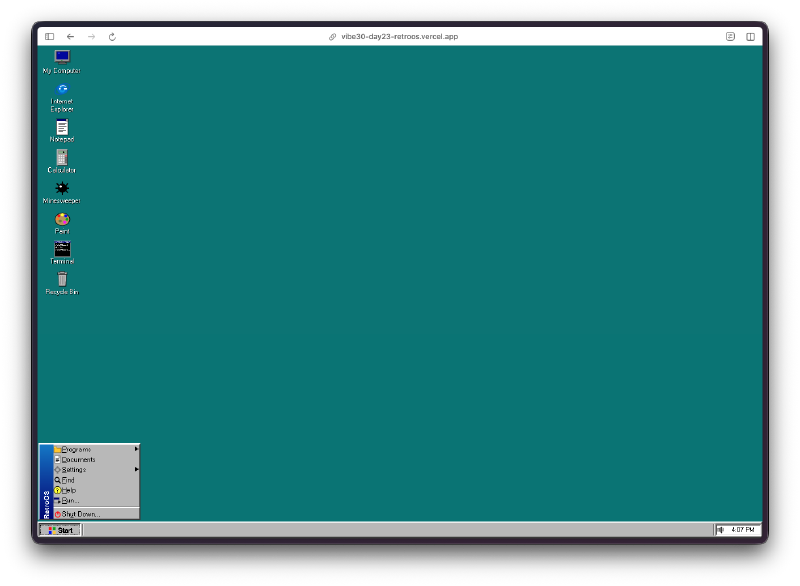
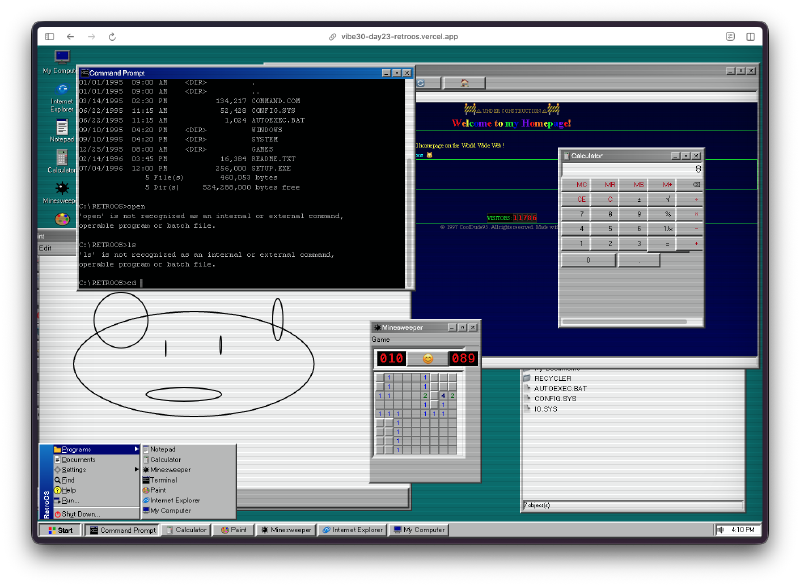
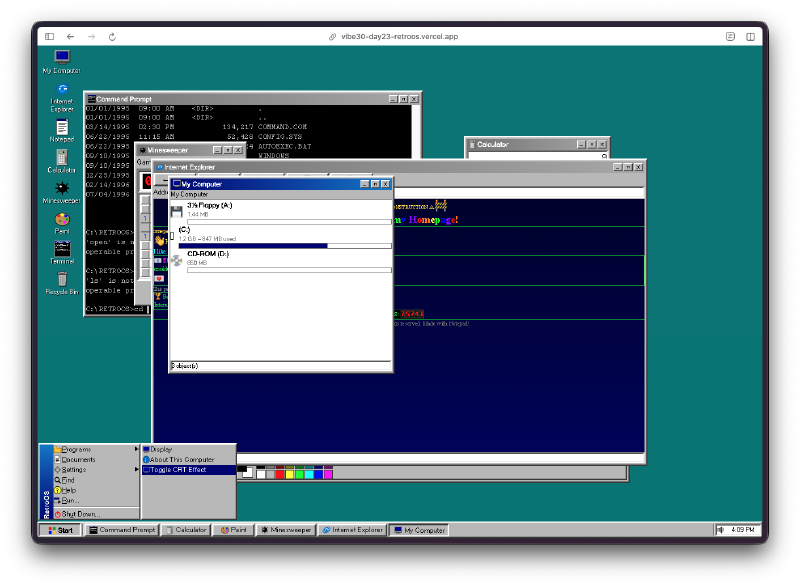
The Start menu works. Click Start and you get the classic cascading menu with Programs, Documents, Settings, Find, Help, Run, and Shut Down. The apps are listed right there. It even has that beveled 3D border that Win95 was known for.
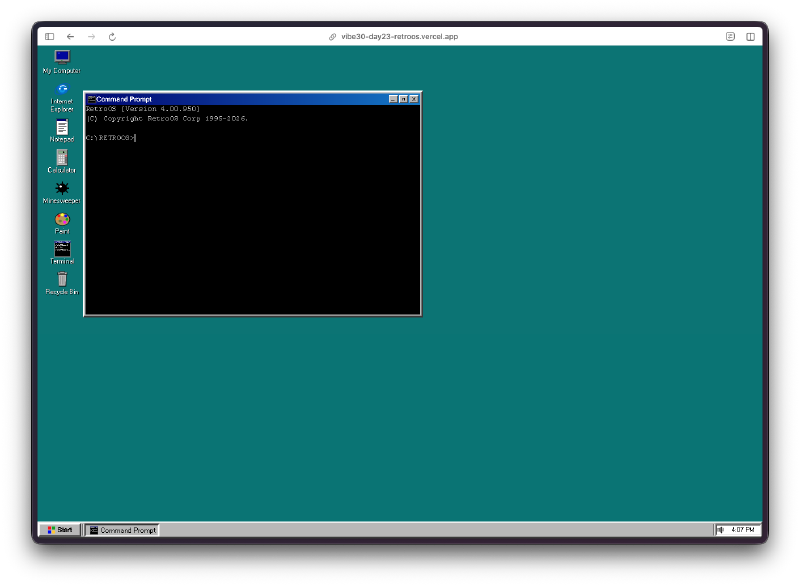
The Terminal is surprisingly deep. It’s not just a visual prop. You can run dir and get a fake file listing with AUTOEXEC.BAT and CONFIG.SYS. The output formatting matches DOS, right down to the date format and byte counts. It even responds to ver with a version string.
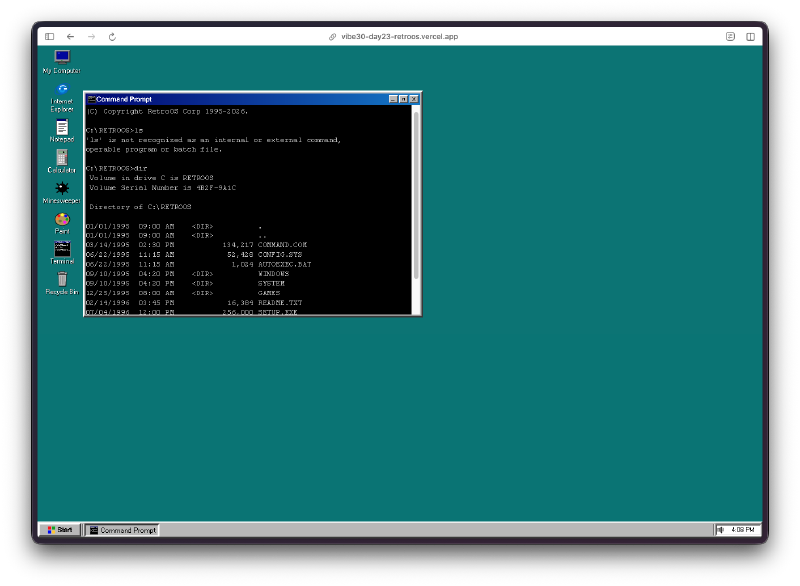
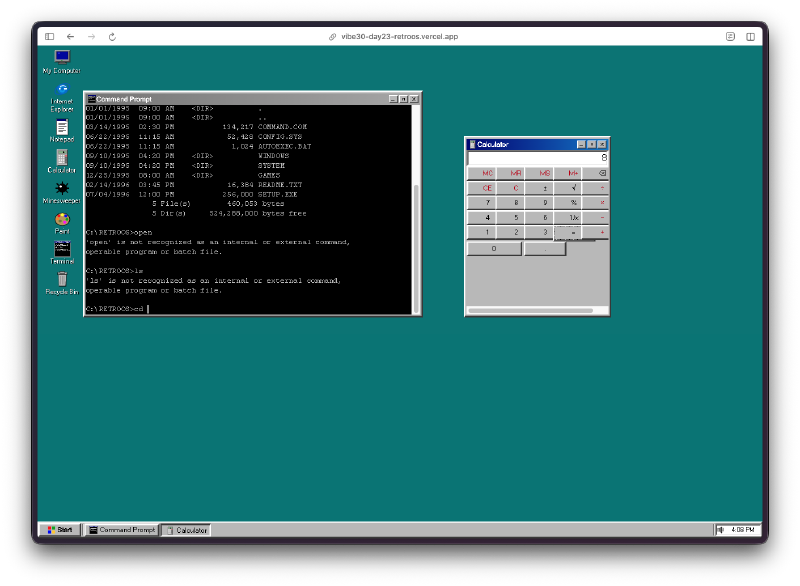
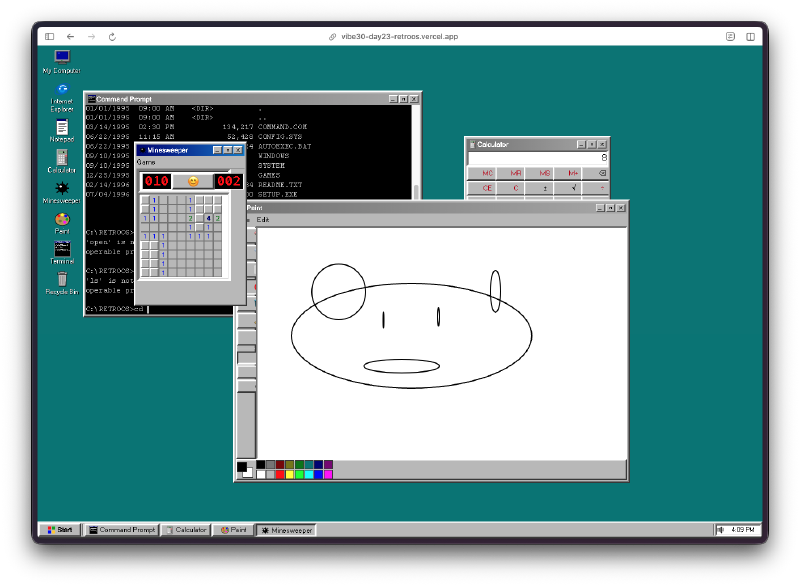
The Calculator works. Proper button layout, the recessed display, the beveled frame. It does actual math. It looks exactly like the one you used to open when you were bored in computer class.
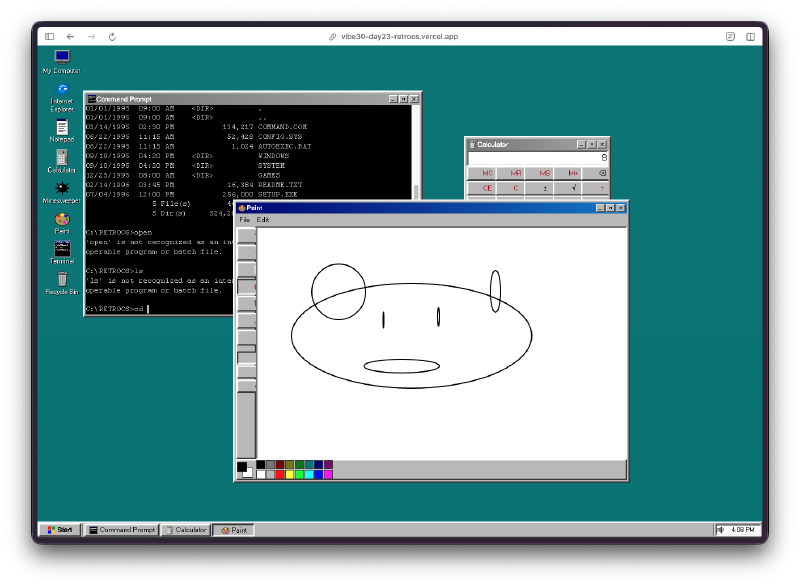
Paint is functional. You get a canvas, a color palette at the bottom, and you can actually draw. The tool selection is there. I drew a face in it because that’s what everyone did in MS Paint in 1997.
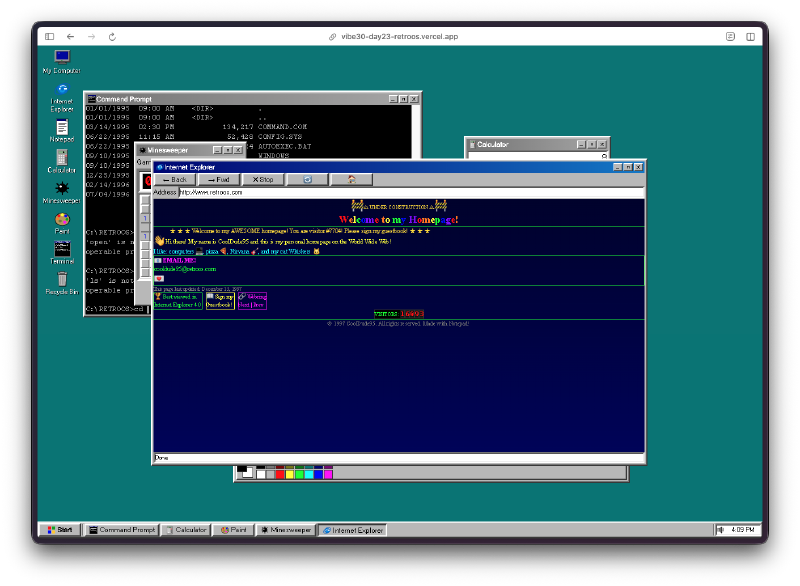
Internet Explorer has a fake homepage. It loads a retro-styled “Welcome to my Homepage” page with colored text, visitor counter, and a guestbook link. The attention to detail on this one got me.
My Computer shows drives. Floppy A:, hard drive C:, and a CD-ROM D:. It’s a file browser for a filesystem that doesn’t exist, but it looks exactly right.
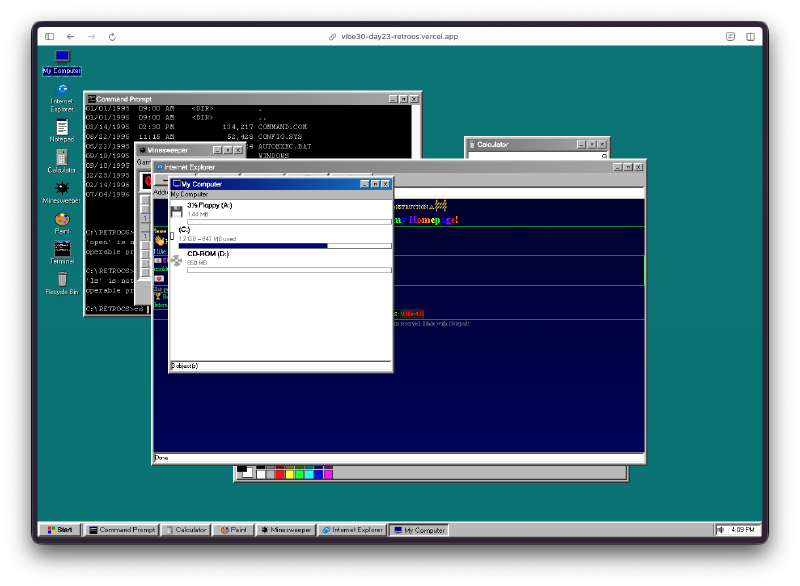
Minesweeper is playable. The classic grid with the counter and smiley face at the top. Numbers, flags, mines. It’s the real deal.
All the windows are draggable and resizable. You can stack them, move them around, minimize them to the taskbar, and the taskbar shows all open windows just like the real OS did. The whole window management system works.
And then there’s the BSOD easter egg. I won’t spoil how to trigger it, but it’s in there, and it looks authentic.
The Bug Reports#
Honestly, not much to report here. The window management worked on the first pass. The apps all loaded correctly. The main things I noticed:
- Some windows could overlap the taskbar if you dragged them low enough
- The CRT effect was a bit heavy on smaller screens
- Minesweeper’s first click could sometimes hit a mine (the real version protected you from that)
Minor stuff. The core experience was solid right away.
Try It#
Click the black screen to boot. Click Start to explore. Open everything. Try the Terminal commands. Draw something in Paint. Play Minesweeper. Find the BSOD.
Day 23 Verdict#
This is one of those projects where the nostalgia factor alone makes it worth building. But beyond that, the technical scope is impressive. A window manager, seven separate apps, a boot sequence, sound effects, keyboard shortcuts, a fake filesystem, a fake internet. All from a single prompt session.
What gets me is the attention to detail. The teal desktop color. The specific gray of the window chrome. The beveled borders. The way the taskbar buttons look when a window is active versus inactive. Nobody told it to get those details right. It just knew what Windows 95 looked like and it nailed the aesthetic.
If you grew up clicking Start for the first time on a beige tower in the mid-90s, go try this one. It’ll take you right back.
This is day 23 of 30 Days of Vibe Coding. Follow along as I ship 30 projects in 30 days using AI-assisted coding.